
How to change any text in Lumintheme The Default theme content or sometimes referred to as the Language Editor is where you can modify the default wording or text used in Lumintheme. For example, you can change buttons like "Add to Cart" or "Quick View", form fields, and accessibility labels.
How to
Use the ellipsis (three dots) at the top of the Theme Editor to view the dropdown menu
Choose "Edit default theme content":

Filter Use the filter search tool at the top to quickly find words or content to change:

Tabs The content has been categorized for easy access. Use the Tab bar to view content based on its category:

Content After choosing a tab, you can view the content within that category. You can modify the theme text in these fields:

After making changes, use the Save button to complete.
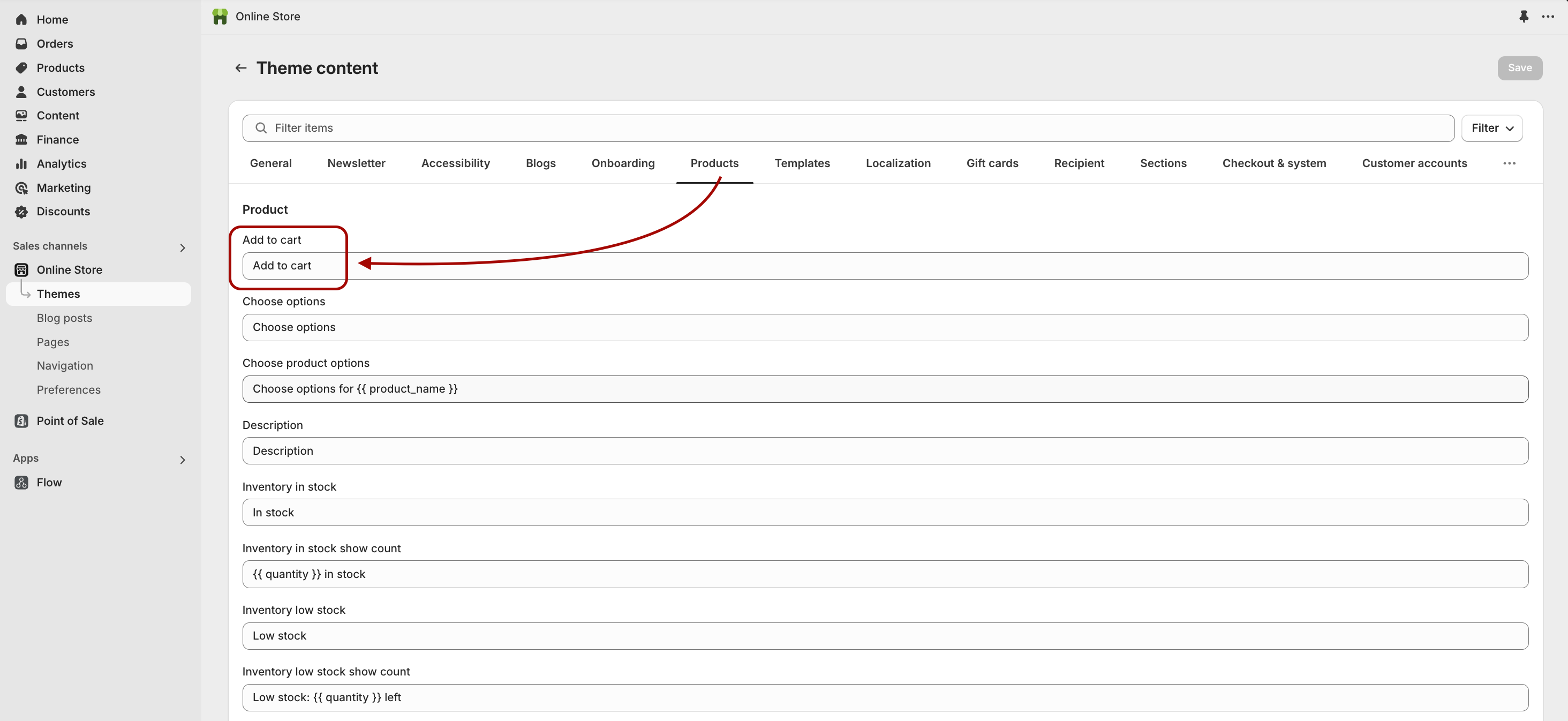
Example Change the Add To Cart button text:
Shopify has additional documentation on this feature:
https://help.shopify.com/en/manual/online-store/themes/customizing-themes/language/change-wording
0 comments